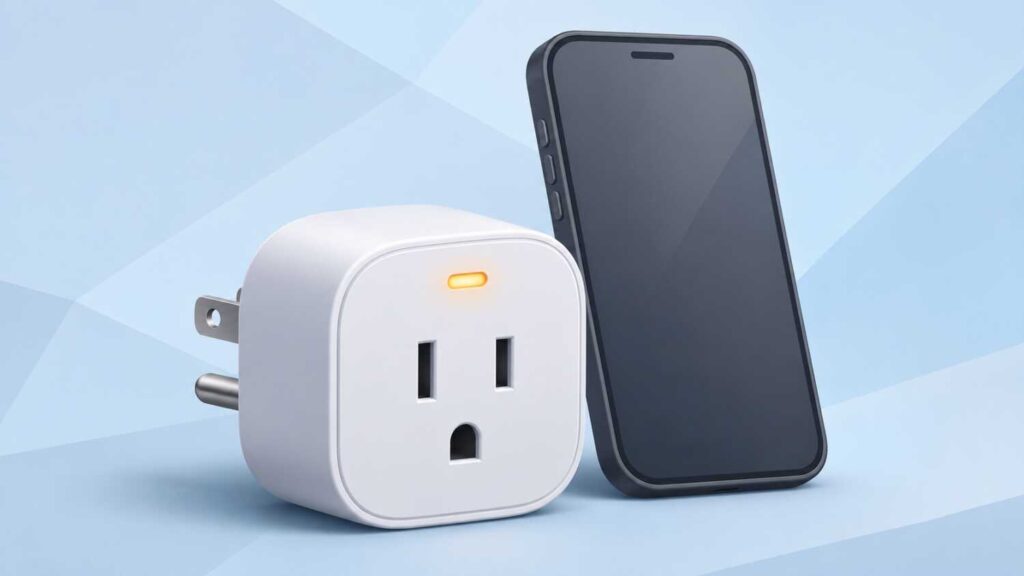
If a smart device stops responding, find the smallest part of the setup that has failed before you reset anything. One offline plug, an entire room of devices and a voice assistant that cannot control an otherwise working light each point to a different first check.
Work from the device outward
- Check what else is affected. Try a second device. If several devices failed together, look for changes they share, such as the same hub, network or account.
- Try the physical control. Where the product has an ordinary button or control, check whether the device responds there. For a light, verify the normal supply and wall switch. Follow the manufacturer’s advice if the device itself seems damaged.
- Open the maker’s app. See whether it reports the device online. Try one simple command and check the physical result. Take a note of the exact app message.
- Try the platform you normally use. If the device works in its own app but fails in Google Home or Alexa, check for the correct home, room and device entry there. Also note whether it is one device or every device from the same integration.
- Check what changed. A replacement router, Wi-Fi password change, firmware update or move to another outlet is a useful clue. Change one thing at a time so you can tell which step helped.
Decide what to do next
- One device offline in both apps: follow the manufacturer’s device-specific checks and confirm what its indicator actually means for your model.
- Several brands offline at once: check the network or shared controller first.
- The manufacturer app works: focus on the connection to the platform, with a test command after each change.
If a reset is the remaining supported step, record what needs to be recreated first. That could include a room assignment, routine or pairing code. It also helps to know the last time the device worked and which apps or controls still respond. Those facts are more useful to support than a screenshot that only says “offline.”
Related on YoMotherboard: Will This Smart Device Work With My Home?