


elFinder is a great file manager to use to manage files on your web servers hard drive. It can be configured to work with TinyMCE or called on it’s own which is what I am going to demonstrate here. When browsing files I wanted to be able to select a file and then to get the URL of that file passed back to the main form.
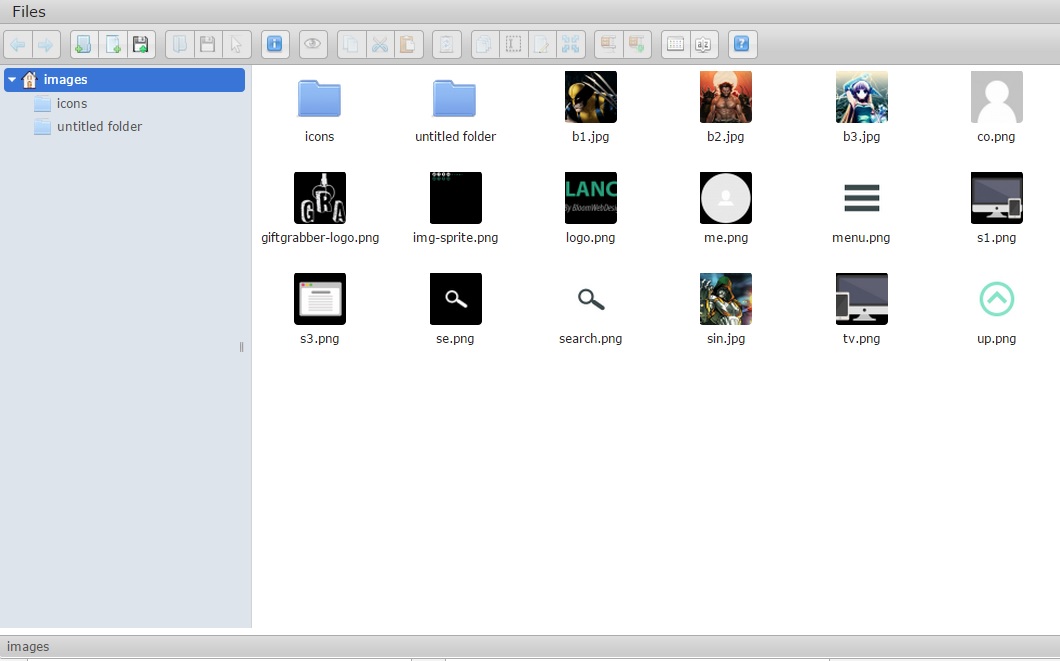
The default instance of elFinder doesn’t return the selected file to the previous window which is a bit of a pain, but thankfully it’s not all that hard to get it working. For this instance I was creating a form that would create an image gallery. Images were selected from the hard drive and then once submitted the selected images would become a gallery. So I needed to use elFinder as a file manager to browse the disk and allow me to upload new images.
The following HTML is setup to trigger the elFinder window and display any images that are selected. There is a hidden input field that will store the selected images you you can send them through in a form. The selected images will then be displayed in the “selectedImages” div after selecting them.
<input type = "text" name = "galleryimages" id = "galleryimages" style = "display:none"/>
<a href = "javascript:void(0)" id = "elfinder_button">Add Gallery Images</a>
<div id = "selectedImages">

</div>
The javascript below is set to wait for a click of the href. Once clicked it will display the window. The url will need to be changed if you have “connector.php” moved to a different location. I found height and width useful to, but they are optional. Place any code you like inside “getFileCallback”. You can use jQuery to put the “file” value anywhere you like on your page.
$('#elfinder_button').live('click', function() {
  $('<div id="editor" />').dialogelfinder({
    url : 'php/connector.php',
    width: '80%',
    height: '600px',
    getFileCallback: function(file) {
      var filePath = file; //file contains the relative url.
      var imgPath = "<img src = '"+filePath+"'/>";
      $('#selectedImages').append(imgPath); //add the image to a div so you can see the selected images
      $('#editor').remove(); //close the window after image is selected
    }
  });
});
I found I had to update some of the CSS for the elFinder window as the buttons were showing up strange. I was able to add the CSS to the page that was calling the file manager so there was no issues fixing this.
How to integrated with CKEditor
First thanks this was very helpful.
I would be helpful to list the js and css libraries required:
jquery.min.js
jquery-ui.min.js
smoothness/jquery-ui.min.css
elfinder.min.js
Uncaught ReferenceError: $ is not defined
Just found this. You are awesome! Thanks so much. With a little adapting, this’ll make my day!
thanks Dan!
works fine 🙂