


Connecting a smart plug to Google Home is more often than not, a very simple process. The majority of manufacturers will require you to install a smartphone app that will guide you through the entire process, step by step to ensure the setup is as simple as possible. For anyone having trouble, this tutorial will clear up any confusion you might have around setting up a smart plug with Google Home.
To get started you will need a minimum of two things. A smart plug that you want to set up and a smartphone, tablet or some other device that is running Android or iOS. Once you have this, you are all set to go!
The setup process will generally be the same for any smart plug. There could be some discrepancies between the different manufacturers but overall there shouldn’t be much deviation from the steps below. If you have already setup smart lights with Google Home, this should all be very familiar.
Note: If you have already set up the smart plug to work with the smartphone app but it is not yet set up with Google Home, you can skip to the final step in this guide.
Connect The Plug To a Power Outlet
To begin the pairing process, you will need to connect the smart plug to a power outlet. There will more than likely be a LED status indicator on the plug. It will flash or be lit up in a way to suggest it is ready for pairing. A flashing orange light is a common indicator.
Once the smart plug is ready for pairing, you will be able to move on to the next step.
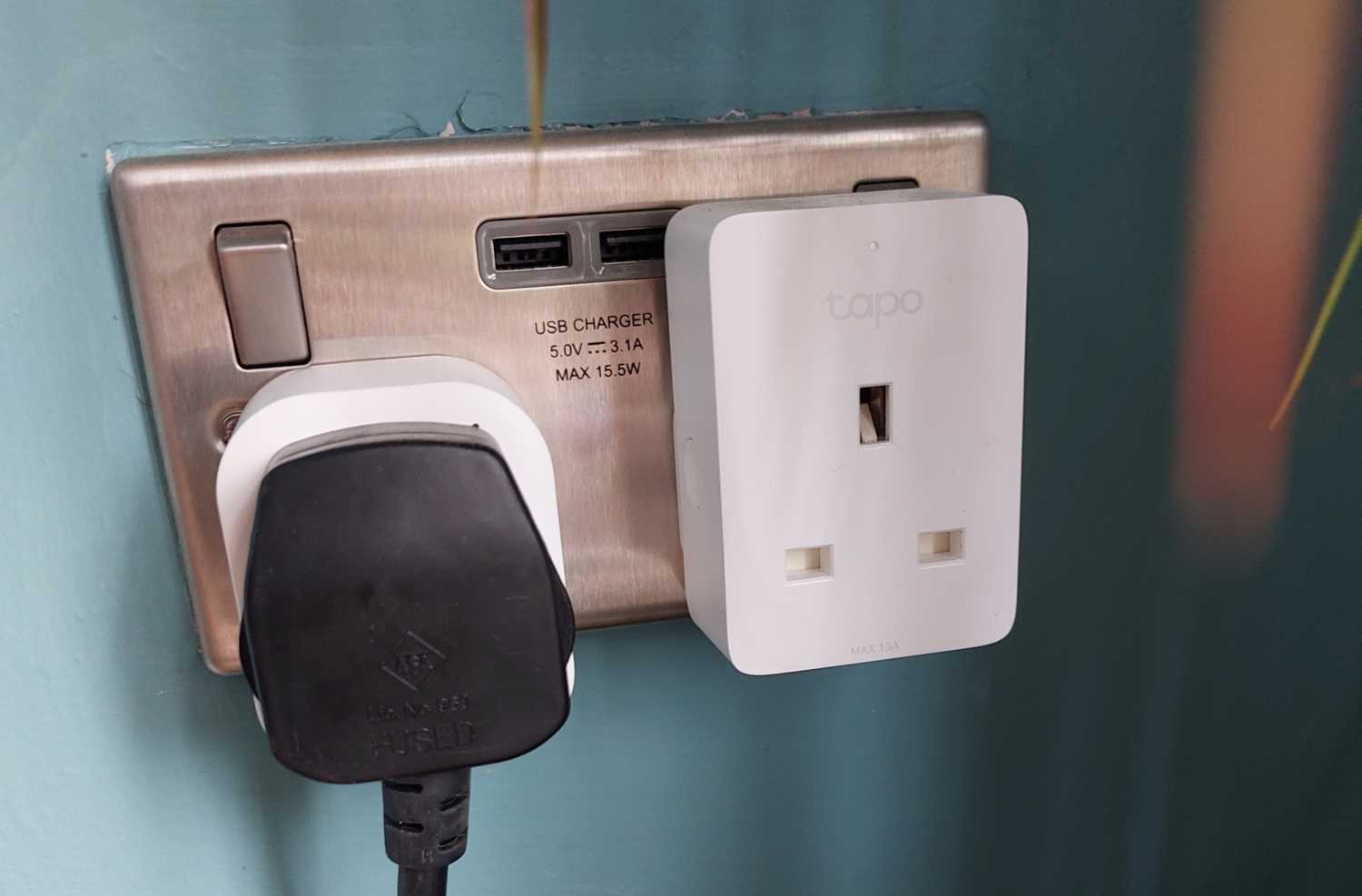
Download The Pairing App For Android or iOS
There may be some manufacturers that allow pairing with other devices but I have yet to come across any that do not require Android or iOS to run the setup wizard.
Head to the app store and download the app that your smart plug manufacturer uses. Normally, it will be the name of the manufacturer. For example, Tapo, Meross, Ikea etc.
Once the app is installed, there will be a button on the main screen that will begin the setup wizard for a device. It may be a plus symbol or even a standard button with text. Tap on this and you can select the name/model of the smart plug you are setting up and it will guide you through the next step.
You will probably have to use Bluetooth or wifi on your phone to connect directly to the smart plug where you will be able to set up the configuration such as wifi SSID selection and a name for the device.
Once this process is finished, you will be able to toggle the smart plug on and off via this app. You will now be ready to connect it with Google Home.
Connecting The Smart Plug To Google Home
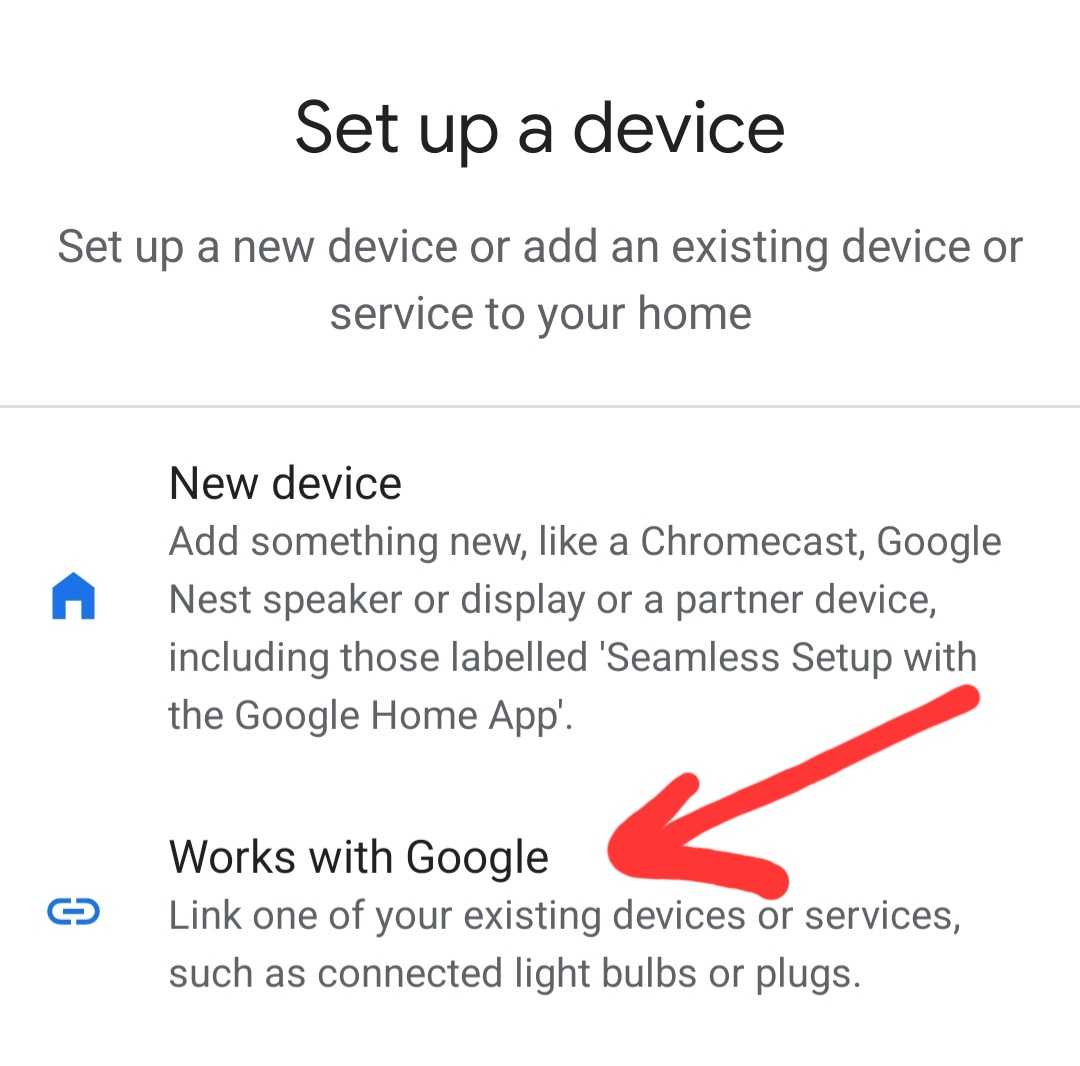
The final step is to get the smart plug working with Google Home. This is very simple to do. Load up the Google Home app on your android or iOS device. At the top left of the screen is a plus icon. Tap this and you will see the screen below.
Select the “Works With Google” option.
You will see a large list of smart device and IoT manufacturers, search for the name of the brand or app that you are using and once you find it on this list, select it.
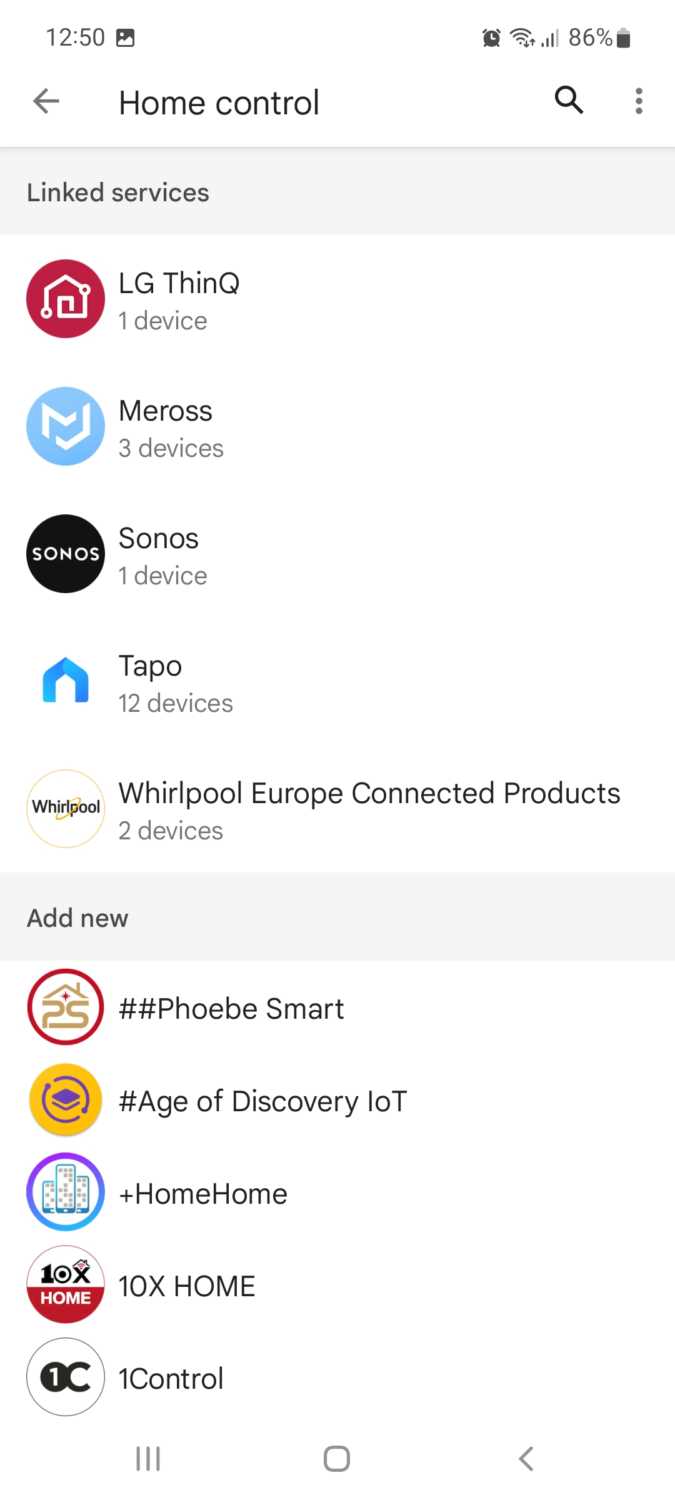
You will be prompted to log in with your account and once this is complete, the smart plugs will now show up on the list of smart devices in your house. You can tap and hold on to this device to rename it or to move it to another room in the house.
Once you have completed the link, you will be able to control all of the connected smart devices with your Google assistant.